# google_fonts
Load and use any [Google Font](https://fonts.google.com/) in your generated images.
## How it works
The `google_fonts` parameter loads the named fonts for your render. Reference those fonts in your CSS with `font-family`. Separate multiple font names with `|`, and specify weights when needed.
## Parameter details
| Name | Type | Required | Description |
| --- | --- | --- | --- |
| `google_fonts` | `String` | No | The names of Google Fonts to load, separated by `\|` for multiple fonts |
## Example usage
### Single font
```json
{
"google_fonts": "Roboto",
"html": "Hello World
",
"css": ".text { font-family: 'Roboto', sans-serif; }"
}
```
### Multiple fonts
```json
{
"google_fonts": "Open Sans|Roboto|Montserrat",
"html": "Title
Content
",
"css": ".heading { font-family: 'Montserrat', sans-serif; } .body { font-family: 'Open Sans', sans-serif; }"
}
```
Performance tip
Each additional font increases render time. Only load fonts you plan to use.
## Font weights and styles
### Specifying font weights
Google Fonts supports multiple weights for each font. You can specify which weights to load by including them in the `google_fonts` parameter.
**Explicit loading**: Specify the weight in the google\_fonts parameter:
```json
{
"google_fonts": "Roboto:300,400,700",
"html": "Hello World
",
"css": ".text { font-family: 'Roboto', sans-serif; font-weight: 700; }"
}
```
Common font weights:
* 300: Light
* 400: Regular (default)
* 500: Medium
* 700: Bold
* 900: Black
### Debugging font weights
If your font weights aren’t appearing correctly, try these steps:
1. **Verify available weights**: Check [Google Fonts](https://fonts.google.com) to ensure the weight exists for your font
```json
{
"google_fonts": "Roboto:300,400,700",
"html": "Weight Test
",
"css": ".debug { font-family: 'Roboto'; font-weight: 700; }"
}
```
2. **Force weight loading**: Explicitly specify weights in the google\_fonts parameter
```json
{
"google_fonts": "Roboto:700",
"html": "Bold Text
",
"css": ".bold { font-family: 'Roboto'; font-weight: 700; }"
}
```
3. **Check for FOUT**: Add ms\_delay if fonts aren’t loading in time
```json
{
"google_fonts": "Roboto:700",
"ms_delay": 500,
"html": "Bold Text
",
"css": ".bold { font-family: 'Roboto'; font-weight: 700; }"
}
```
Font weight tip
Not all fonts support all weights. Check Google Fonts for available weights before using them.
## Troubleshooting
### Flash of unstyled text (FOUT)
If fonts aren’t rendering correctly, use the `ms_delay` parameter to allow time for font loading:
```json
{
"google_fonts": "Roboto",
"ms_delay": 500,
"html": "Hello World
",
"css": ".text { font-family: 'Roboto', sans-serif; }"
}
```
Start with `ms_delay: 500` and increase if needed.
### Common issues
1. **Font not appearing**: Verify the font name matches exactly as shown on Google Fonts
2. **Wrong font weight**: Ensure you’re using a weight that exists for the chosen font
3. **Incorrect quotes**: Use single quotes in CSS: `font-family: 'Roboto', sans-serif;`
## Live example
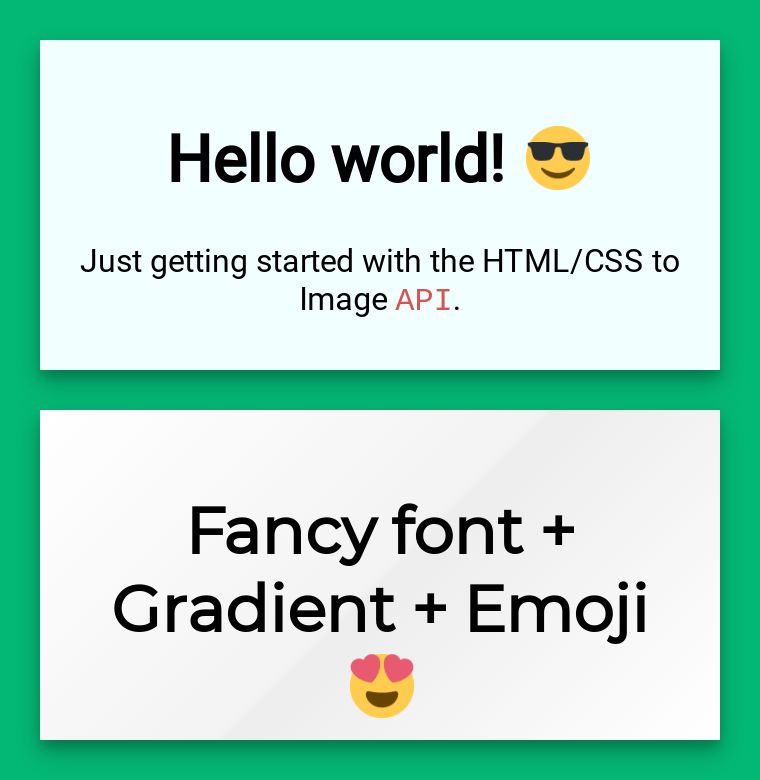
This example loads both Montserrat and Roboto fonts:
```json
{
"google_fonts": "Montserrat|Roboto",
"html": "Hello World!
",
"css": ".text { font-family: 'Montserrat'; }"
}
```
## Alternative approaches
If you need to use fonts not available on Google Fonts:
1. Use a different web font service by including their CSS in your HTML
2. Convert your font to base64 and include it directly in your CSS
3. Host the font files yourself and reference them via URL
[Try it yourself](https://htmlcsstoimage.com/#demo)
## Need help?
Talk to a human. Email [support@htmlcsstoimage.com](mailto:support@htmlcsstoimage.com) and we’ll help you get started.