# selector
Precisely capture specific elements from your webpage
## How it works
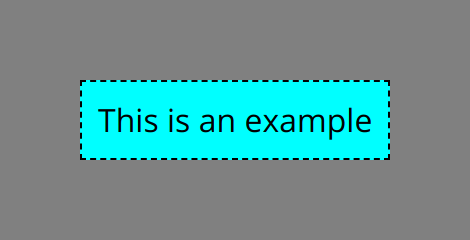
The `selector` parameter allows you to capture specific elements from a webpage by providing a CSS selector. The API will automatically crop the image to match the dimensions of the selected element.
Works Everywhere
The `selector` parameter works with both HTML snippets and full URL screenshots.
## Example usage
### HTML example
Consider this HTML structure:
```html
```
To capture only the inner content div, set the selector parameter:
```json
{
"html": "...
",
"selector": ".content"
}
```
## Common selector types
### Class selectors
To select elements by class name:
```html
...
.profile-card
```
### ID selectors
To select a unique element by ID:
```html
#header
```
### Nested selectors
To select nested elements:
```html
.container .content .post
```
### Multiple classes
To select elements with multiple classes:
```html
...
.card.premium.featured
```
## Advanced selectors
For more complex selections, you can use:
| Selector | Example | Description |
| --- | --- | --- |
| Child | `parent > child` | Selects direct children only |
| Nth Child | `div:nth-child(2)` | Selects specific child elements |
| Attribute | `[data-type="premium"]` | Selects elements with specific attributes |
| Combinators | `header + .content` | Selects elements that follow others |
## Best practices
1. **Be Specific**: Use precise selectors to ensure you capture exactly what you need
2. **Test First**: Verify your selector works in the browser before using it in the API
3. **Consider Dynamic Content**: Allow time for JavaScript-rendered content using `ms_delay` if needed
4. **Unique Identifiers**: When possible, use IDs for more reliable selection
Performance Tip
More specific selectors can help reduce processing time as the API can find the element faster.
## Common issues and solutions
### Element not found
If your selector doesn’t match any elements, try:
* Verifying the selector syntax
* Ensuring dynamic content has loaded (use `ms_delay`)
* Checking for typos in class/ID names
### Wrong element selected
If the wrong element is captured:
* Make your selector more specific
* Use unique identifiers when possible
* Check for duplicates