
Using the API
Generate images from HTML and CSS.
Live demo Get an API KeyBrowse the interactive API reference for endpoint schemas, try the Postman collection, or use the Management API to configure organization resources. For credentials and access, see API keys, permissions, and rate limits.
Authentication
Section titled “Authentication”The API uses HTTP Basic authentication.
- Your username is the API ID (
api_id) and your password is your API Key (api_key). Both of these are available from the dashboard. The code samples demonstrate how to authenticate your request. - Treat your API Key like a password. If exposed, it can be used for any operation its permissions allow. Use a key scoped to the operations your application needs.
Creating an image
Section titled “Creating an image”Requires images:create.
To generate an image, make an HTTP request to the API.
https://hcti.io/v1/imageParameters
Section titled “Parameters”The create image endpoint accepts the following parameters. Accepted as either json or formdata.
| Name | Type | Description |
|---|---|---|
html† |
String |
This is the HTML you want to render. You can send an HTML snippet (<div>Your content</div>) or an entire webpage. |
css |
String |
The CSS for your image. When using with url it will be injected into the page. |
url† |
String |
The fully qualified URL to a public webpage. Such as https://htmlcsstoimage.com. When passed this will override the html param and will generate a screenshot of the url. |
Additional parameters
Section titled “Additional parameters”Optional parameters for greater control over your image.
| Name | Type | Description |
|---|---|---|
additional_header_origins | Array | Allow custom headers on requests to specific additional HTTP or HTTPS origins. |
block_consent_banners | Boolean | When set to true, automatically blocks cookie consent banners and popups on websites. Most useful for URL screenshots. |
color_scheme | String | Set Chrome to render in light or dark mode. Affects websites using prefers-color-scheme. |
dedupe_duration_s | Integer | Reuse an identical recent image without consuming image credits. Sets the lookback window in seconds; defaults and allowed values vary by image type and plan. |
device_scale | Double | Control resolution by adjusting the pixel ratio from 0.1 to 3. Higher values increase image quality and file size. |
disable_twemoji | Boolean | Set to true to use native emoji fonts instead of Twemoji. |
format | String | Choose the file extension in the initially returned image URL: png, jpg, webp, or pdf. |
full_screen | Boolean | Generate an image of the entire height of a URL page. |
google_fonts | String | Load one or more Google fonts, such as Roboto|Open Sans. |
headers | Object | Add custom HTTP headers when screenshotting a URL. Headers are restricted to the requested URL's origin and any additional_header_origins. |
identify_as_hcti | Boolean | Add X-HCTI-SCREENSHOT: 1 to the top-level request when screenshotting a URL. |
include_headers_on_subrequests | Boolean | Also add custom headers to same-origin subrequests and subrequests matching additional_header_origins. |
jumbo_max_height | Integer | Maximum output height in jumbo mode, up to 80,000 pixels. Must be set with jumbo_max_width and consumes additional image credits. |
jumbo_max_width | Integer | Maximum output width in jumbo mode, up to 80,000 pixels. Must be set with jumbo_max_height and consumes additional image credits. |
max_wait_ms | Integer | Set a maximum time limit from 500 to 10000 milliseconds for waiting before taking the screenshot. |
media_type | String | Set Chrome to render using screen or print CSS media styles. |
ms_delay | Integer | Delay before generating the image. Useful when waiting for JavaScript; start with 500 milliseconds. |
pdf_options | Object | Customize PDF output with page size, margins, scale, and background printing. |
proxy_id | String | Route outbound traffic through one of your organization's configured HTTP proxies. Available on the 10,000 images/month plan or higher. |
render_when_ready | Boolean | Wait to generate the image until JavaScript calls ScreenshotReady(). |
selector | String | Crop the image to an element matching this CSS selector, such as section#complete-toolkit.container-lg. |
storage_destination_id | String | Save rendered files to one of your organization's configured storage destinations. Available on the 10,000 images/month plan or higher. |
timezone | String | Set Chrome's timezone with an IANA identifier such as America/New_York. |
transparent_background | Boolean | Set to true to render with a transparent background. |
viewport_height | Integer | Set the height of Chrome's viewport. Both dimensions must be set when using either. |
viewport_landscape | Boolean | Set Chrome's viewport to landscape mode. |
viewport_mobile | Boolean | Set Chrome's viewport to emulate a mobile device. |
viewport_touch | Boolean | Set Chrome's viewport to support touch events. |
viewport_width | Integer | Set the width of Chrome's viewport. Both dimensions must be set when using either. |
Example responses
Section titled “Example responses”STATUS: 200 OK{ "url": "https://hcti.io/v1/image/be4c5118-fe19-462b-a49e-48cf72697a9d", "id": "be4c5118-fe19-462b-a49e-48cf72697a9d"}STATUS: 400 BAD REQUEST{ "error": "Bad Request", "statusCode": 400, "message": "HTML is Required"}STATUS: 429 TOO MANY REQUESTS{ "error": "Plan limit exceeded", "statusCode": 429, "message": "You've used 3055 of your 3000 image credits. Upgrade via the Dashboard: https://htmlcsstoimage.com/dashboard"}The 429 example above is an image-credit limit. Management operations can return a separate 429 for per-minute throttling; see rate limits and retry guidance. Missing or invalid credentials return 401; insufficient permissions return 403 with the required permission in the message.
Getting an image
Section titled “Getting an image”After creating an image, you can use the returned URL to either download your image, or use it directly in your website.
https://hcti.io/v1/image/:image_idThis URL is permanent for as long as your account is active. It’s automatically cached and optimized by Cloudflare’s global content delivery network. You can use it directly on your webpages and not worry about hurting your page speed score.
- Lossless optimization: each image is optimized with no change in image quality.
- Global cache: the image is cached near your users to reduce latency.
File formats
Section titled “File formats”The API supports jpg, png, webp, and pdf. If no file extension is passed, you’ll get back a png by default. If you need a different file format, adjust the extension on the url.
| Format | Example |
|---|---|
| png | https://hcti.io/v1/image/a3ab2ab2-906e-4b5c-a88d-41a1c3f3779e.png |
| jpg | https://hcti.io/v1/image/a3ab2ab2-906e-4b5c-a88d-41a1c3f3779e.jpg |
| webp | https://hcti.io/v1/image/a3ab2ab2-906e-4b5c-a88d-41a1c3f3779e.webp |
https://hcti.io/v1/image/a3ab2ab2-906e-4b5c-a88d-41a1c3f3779e.pdf |
Query parameters
Section titled “Query parameters”Query parameters can be added to the URL to adjust your image.
| Name | Type | Description |
|---|---|---|
height |
Integer |
The height of the image. Maximum 5000. |
width |
Integer |
The width of the image. Maximum 5000. |
dpi |
Integer |
Sets the DPI metadata tag on the image. Minimum 30, maximum 600. |
dl |
Integer |
Set dl=1 and the image will be served as a downloadable attachment. |
Cropping parameters
Section titled “Cropping parameters”Advanced cropping options for precise control over the rendered image region.
| Name | Type | Description |
|---|---|---|
aspect_ratio |
String |
Crop to a specific aspect ratio. Format: width_height (e.g., 16_9, 1_1). |
x_origin |
String |
Horizontal alignment for a crop whose width is supplied by crop_width or derived from aspect_ratio. Accepts start, center, or end. Cannot be combined with x_1 or x_2. |
y_origin |
String |
Vertical alignment for a crop whose height is supplied by crop_height or derived from aspect_ratio. Accepts start, center, or end. Cannot be combined with y_1 or y_2. |
x_1 |
String |
Starting x coordinate for crop region. Use with x_2 or crop_width. |
x_2 |
String |
Ending x coordinate for crop region. Must be used with x_1. |
y_1 |
String |
Starting y coordinate for crop region. Use with y_2 or crop_height. |
y_2 |
String |
Ending y coordinate for crop region. Must be used with y_1. |
crop_width |
String |
Width of the crop region. Use with x_1 or alone with aspect_ratio. |
crop_height |
String |
Height of the crop region. Use with y_1 or alone with aspect_ratio. |
Cropping examples
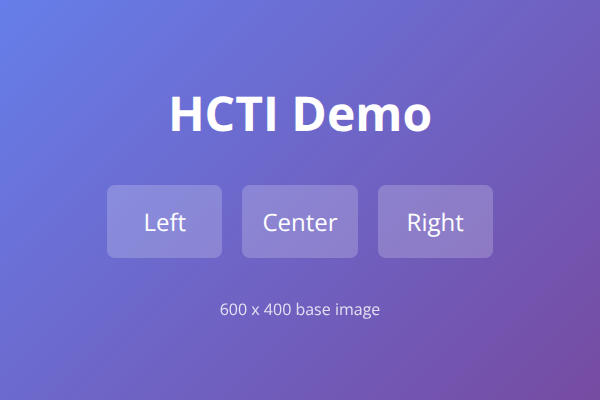
Section titled “Cropping examples”Here’s a base image (600x400 pixels) and how different cropping parameters affect it:
Original image:
Crop to 1:1 square from center (aspect_ratio=1_1&crop_height=100%):
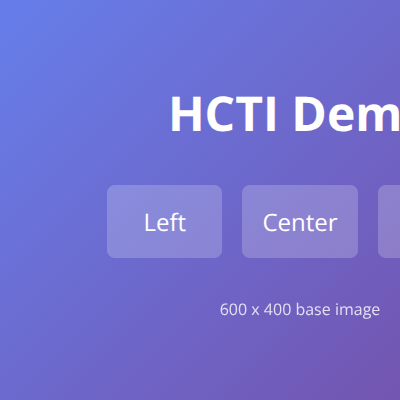
?aspect_ratio=1_1&crop_height=100%Crop left third (x_1=0&crop_width=33%):

?x_1=0&crop_width=33%Crop center section (x_1=33%&x_2=66%):

?x_1=33%&x_2=66%Crop right third (x_1=67%&crop_width=33%):

?x_1=67%&crop_width=33%Crop to 16:9 aspect ratio (aspect_ratio=16_9&crop_width=100%):
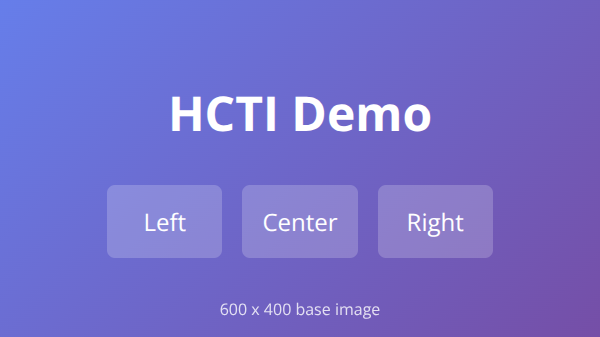
?aspect_ratio=16_9&crop_width=100%Deleting an image
Section titled “Deleting an image”Requires images:delete.
https://hcti.io/v1/image/:image_idTo delete an image using the API, you can send a DELETE request to your image URL. This will remove your image from our servers and clear the caching for the image in our CDN.
All data and copies of the image are deleted. This cannot be undone.
Example response
Section titled “Example response”STATUS: 202 ACCEPTEDBatch image creation
Section titled “Batch image creation”Requires images:create.
Create up to 25 images in a single API request. This is more efficient than making multiple individual requests.
https://hcti.io/v1/image/batchParameters
Section titled “Parameters”| Name | Type | Description |
|---|---|---|
default_options |
Object |
Default parameters applied to all images in the batch. Accepts all standard image creation parameters. |
variations |
Array |
Array of image objects. Each can override default_options. Maximum 25 items. |
Example request
Section titled “Example request”{ "default_options": { "css": "body { font-family: sans-serif; }", "device_scale": 2 }, "variations": [ { "html": "<div>Image 1</div>" }, { "html": "<div>Image 2</div>" }, { "html": "<div>Image 3</div>", "device_scale": 1 } ]}Example response
Section titled “Example response”STATUS: 200 OK{ "images": [ { "url": "https://hcti.io/v1/image/abc123", "id": "abc123" }, { "url": "https://hcti.io/v1/image/def456", "id": "def456" }, { "url": "https://hcti.io/v1/image/ghi789", "id": "ghi789" } ]}Batch deletion
Section titled “Batch deletion”Requires images:delete.
Delete multiple images at once by sending their IDs.
https://hcti.io/v1/image/batch{ "ids": ["abc123", "def456", "ghi789"]}STATUS: 202 ACCEPTEDListing images
Section titled “Listing images”Requires images:read.
Retrieve a list of all images created by your account with pagination support.
https://hcti.io/v1/imagesQuery parameters
Section titled “Query parameters”| Name | Type | Description |
|---|---|---|
count |
Integer |
Number of images to return. Default 50, maximum 50. |
page_token |
String |
Token for pagination. Use next_page_token from the previous response. |
Example response
Section titled “Example response”STATUS: 200 OK{ "images": [ { "id": "be4c5118-fe19-462b-a49e-48cf72697a9d", "url": "https://hcti.io/v1/image/be4c5118-fe19-462b-a49e-48cf72697a9d", "created_at": "2024-03-15T10:30:00Z" }, { "id": "a3ab2ab2-906e-4b5c-a88d-41a1c3f3779e", "url": "https://hcti.io/v1/image/a3ab2ab2-906e-4b5c-a88d-41a1c3f3779e", "created_at": "2024-03-14T08:15:00Z" } ], "next_page_token": "eyJsYXN0X2lkIjoiYTNhYjJhYjItOTA2ZS00YjVjLWE4OGQtNDFhMWMzZjM3NzllIn0=", "has_next_page": true}Checking account usage
Section titled “Checking account usage”Requires usage:read. See Usage and limits for monitoring headers, billing-period semantics, and MCP usage tools.
https://hcti.io/v1/usageTo check your account usage, you can make a request to the usage endpoint. It will return the total images created for your account rolled up into different time periods.
We recommend using this endpoint for tracking your usage in tools such as Datadog.
Example response
Section titled “Example response”STATUS: 200 OK{ "data": { "hour": { "2024-03-14T14:00:00Z": 54, "2024-03-14T15:00:00Z": 56, "2024-03-14T16:00:00Z": 56, "2024-03-14T17:00:00Z": 57, "2024-03-14T18:00:00Z": 59, "2024-03-14T19:00:00Z": 55, "2024-03-14T20:00:00Z": 58, "2024-03-14T21:00:00Z": 54, "2024-03-14T22:00:00Z": 57, "2024-03-14T23:00:00Z": 57, "2024-03-15T00:00:00Z": 60, "2024-03-15T01:00:00Z": 56, "2024-03-15T02:00:00Z": 56, "2024-03-15T03:00:00Z": 55, "2024-03-15T04:00:00Z": 57, "2024-03-15T05:00:00Z": 55, "2024-03-15T06:00:00Z": 55, "2024-03-15T07:00:00Z": 56, "2024-03-15T08:00:00Z": 55, "2024-03-15T09:00:00Z": 60, "2024-03-15T10:00:00Z": 62, "2024-03-15T11:00:00Z": 60, "2024-03-15T12:00:00Z": 62, "2024-03-15T13:00:00Z": 62, "2024-03-15T14:00:00Z": 62, "2024-03-15T15:00:00Z": 61, "2024-03-15T16:00:00Z": 61, "2024-03-15T17:00:00Z": 60, "2024-03-15T18:00:00Z": 61, "2024-03-15T19:00:00Z": 64, "2024-03-15T20:00:00Z": 61, "2024-03-15T21:00:00Z": 61, "2024-03-15T22:00:00Z": 62, "2024-03-15T23:00:00Z": 63, "2024-03-16T00:00:00Z": 62, "2024-03-16T01:00:00Z": 62, "2024-03-16T02:00:00Z": 60, "2024-03-16T03:00:00Z": 60, "2024-03-16T04:00:00Z": 62, "2024-03-16T05:00:00Z": 53, "2024-03-16T06:00:00Z": 60, "2024-03-16T07:00:00Z": 60, "2024-03-16T08:00:00Z": 60, "2024-03-16T09:00:00Z": 60, "2024-03-16T10:00:00Z": 60, "2024-03-16T11:00:00Z": 60, "2024-03-16T12:00:00Z": 68, "2024-03-16T13:00:00Z": 62, "2024-03-16T14:00:00Z": 61, "2024-03-16T15:00:00Z": 60, "2024-03-16T16:00:00Z": 60, "2024-03-16T17:00:00Z": 65, "2024-03-16T18:00:00Z": 63, "2024-03-16T19:00:00Z": 60, "2024-03-16T20:00:00Z": 60, "2024-03-16T21:00:00Z": 60, "2024-03-16T22:00:00Z": 62, "2024-03-16T23:00:00Z": 61, "2024-03-17T00:00:00Z": 60, "2024-03-17T01:00:00Z": 60, "2024-03-17T02:00:00Z": 65, "2024-03-17T03:00:00Z": 63, "2024-03-17T04:00:00Z": 62, "2024-03-17T05:00:00Z": 63, "2024-03-17T06:00:00Z": 63, "2024-03-17T07:00:00Z": 64, "2024-03-17T08:00:00Z": 63, "2024-03-17T09:00:00Z": 64, "2024-03-17T10:00:00Z": 60, "2024-03-17T11:00:00Z": 61, "2024-03-17T12:00:00Z": 61, "2024-03-17T13:00:00Z": 29 }, "day": { "2024-01-19T00:00:00Z": 1569, "2024-01-20T00:00:00Z": 1722, "2024-01-21T00:00:00Z": 1604, "2024-01-22T00:00:00Z": 1560, "2024-01-23T00:00:00Z": 1571, "2024-01-24T00:00:00Z": 1627, "2024-01-25T00:00:00Z": 1660, "2024-01-26T00:00:00Z": 1527, "2024-01-27T00:00:00Z": 1588, "2024-01-28T00:00:00Z": 1549, "2024-01-29T00:00:00Z": 1523, "2024-01-30T00:00:00Z": 1662, "2024-01-31T00:00:00Z": 1556, "2024-02-01T00:00:00Z": 1585, "2024-02-02T00:00:00Z": 1539, "2024-02-03T00:00:00Z": 1556, "2024-02-04T00:00:00Z": 1487, "2024-02-05T00:00:00Z": 1580, "2024-02-06T00:00:00Z": 1498, "2024-02-07T00:00:00Z": 1485, "2024-02-08T00:00:00Z": 1474, "2024-02-09T00:00:00Z": 1487, "2024-02-10T00:00:00Z": 1513, "2024-02-11T00:00:00Z": 1477, "2024-02-12T00:00:00Z": 1464, "2024-02-13T00:00:00Z": 1458, "2024-02-14T00:00:00Z": 1452, "2024-02-15T00:00:00Z": 1477, "2024-02-16T00:00:00Z": 1471, "2024-02-17T00:00:00Z": 1482, "2024-02-18T00:00:00Z": 1499, "2024-02-19T00:00:00Z": 1504, "2024-02-20T00:00:00Z": 1530, "2024-02-21T00:00:00Z": 1502, "2024-02-22T00:00:00Z": 1501, "2024-02-23T00:00:00Z": 1486, "2024-02-24T00:00:00Z": 1475, "2024-02-25T00:00:00Z": 1469, "2024-02-26T00:00:00Z": 1460, "2024-02-27T00:00:00Z": 1451, "2024-02-28T00:00:00Z": 1443, "2024-02-29T00:00:00Z": 1447, "2024-03-01T00:00:00Z": 1443, "2024-03-02T00:00:00Z": 1455, "2024-03-03T00:00:00Z": 1473, "2024-03-04T00:00:00Z": 1482, "2024-03-05T00:00:00Z": 1463, "2024-03-06T00:00:00Z": 1472, "2024-03-07T00:00:00Z": 1452, "2024-03-08T00:00:00Z": 1469, "2024-03-09T00:00:00Z": 1478, "2024-03-10T00:00:00Z": 1494, "2024-03-11T00:00:00Z": 1469, "2024-03-12T00:00:00Z": 1471, "2024-03-13T00:00:00Z": 1465, "2024-03-14T00:00:00Z": 1462, "2024-03-15T00:00:00Z": 1336, "2024-03-16T00:00:00Z": 1427, "2024-03-17T00:00:00Z": 838 }, "month": { "2023-10-01T00:00:00Z": 44847, "2023-11-01T00:00:00Z": 44973, "2023-12-01T00:00:00Z": 43263, "2024-01-01T00:00:00Z": 59095, "2024-02-01T00:00:00Z": 56422, "2024-03-01T00:00:00Z": 50747 } }, "per_billing_period": [ { "total_images": 439, "start": "2018-11-02T22:57:29.015Z", "end": "2018-12-02T22:57:29.015Z" }, { "total_images": 3744, "start": "2018-12-02T22:57:29.015Z", "end": "2019-01-01T22:57:29.015Z" }, { "total_images": 595, "start": "2019-01-01T22:57:29.015Z", "end": "2019-01-31T22:57:29.015Z" }, { "total_images": 123570, "start": "2019-01-31T22:57:29.015Z", "end": "2019-03-02T22:57:29.015Z" }, { "total_images": 55398, "start": "2019-03-02T22:57:29.015Z", "end": "2019-04-01T22:57:29.015Z" }, { "total_images": 40935, "start": "2019-04-01T22:57:29.015Z", "end": "2019-05-01T22:57:29.015Z" } ]}Need help?
Talk to a human. Email support@htmlcsstoimage.com and we’ll help you get started.