
Image
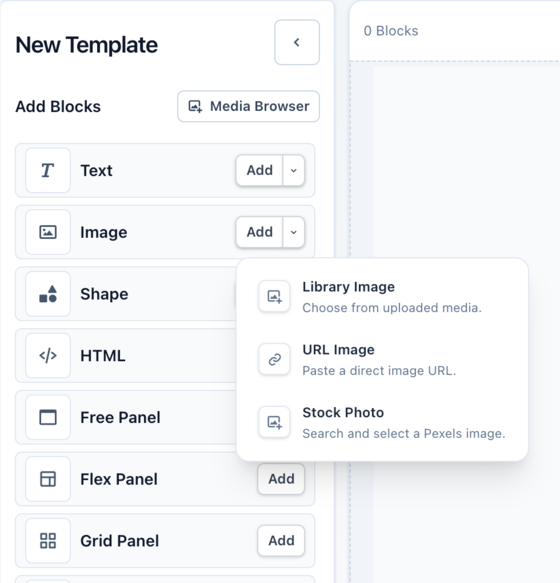
Use Image blocks for photos, logos, avatars, product images, media library assets, and remote image URLs. Add one from the left sidebar. Start from your media library, a URL, or a stock photo, then change the source later in the block controls.
Common properties
Most blocks share these controls in the right sidebar. Selecting a child also shows controls for its parent layout.
| Property | Details |
|---|---|
| Size | Width can be fixed, percentage-based, or automatic. Height can be fixed, flexible, or constrained by minimum and maximum values. Lock the aspect ratio to preserve proportions. Size values support variables. |
| Arrange | X and Y position blocks on the canvas or inside Free Panels, using fixed values or percentage anchors. Alignment controls place blocks at common positions. Rotate, flip, lock, or change the layer order. |
| Background | Choose a solid color, a linear, radial, or conic gradient, or a pattern. Colors support variables. Gradient stops have colors and positions and are sorted by position; linear and conic gradients also have an angle. Pattern colors and size support variables, with controls varying by pattern. |
| Border | Simple mode shares color, thickness, style, and radius across all sides. Advanced mode sets each side's color, thickness, and style and each corner's radius independently. |
| Shadow | Add layers of regular shadow, inner shadow, or glow, subject to the block-specific limits below. |
Canvas and block backgrounds are separate: transparent areas reveal the parent or canvas. Patterns are based on CSS Pattern. See Sizing and positioning for sizing modes and position anchors.
With Contain or Scale Down, the border and shadow follow the rendered image.
Block-specific properties
Section titled “Block-specific properties”| Property | Details | Variables |
|---|---|---|
| Media source | Media library, external URL, or Pexels stock photo. | Yes |
| Fit | How the image fills, stretches, crops, or keeps its natural size inside the block. | — |
| Opacity | Transparency of the whole block, including its content and styling. | Yes |
| Object position | Which part stays visible when using cover-style cropping. | Yes |
Image sources
Section titled “Image sources”Media Library
Section titled “Media Library”Use the Media Library for reusable logos, product photos, brand images, backgrounds, and icons. Upload assets from the media browser when your plan supports uploads. Assets are shared across your organization’s templates, so you can reuse them without uploading them for each template.
Use an absolute URL for an existing image, or connect the URL to a variable for render-time data.
Stock Photos
Section titled “Stock Photos”Choose a stock image provided by Pexels.
Fit modes
Section titled “Fit modes”| Mode | Details |
|---|---|
| Cover | Fills the block and may crop the image. |
| Contain | Keeps the whole image visible. |
| Fill | Stretches the image to the block size. |
| Scale Down | Keeps the natural size unless the image needs to shrink. |
| None | Keeps the natural size. |
Templated content
Connect URL sources to a variable so each generated image can use a different URL.
Many properties can use variables to assign their value when each image is created. Variables can be required, ignored, or given a fallback value. Pass values in template_values when rendering the template.