
Variables
Use variables for anything that changes at render time.
Variables let one saved template create many different images. A variable can control text, an image URL, a color, a number, or another supported field.
Open the Variables tab in the right sidebar to see the variables in the current template, edit preview data, and check what the template expects before you save or render it.
How Variables Are Added
Section titled “How Variables Are Added”Variables can come from two places:
| Source | How it works |
|---|---|
| Handlebars in blocks | Rich text and HTML blocks discover variables from expressions such as {{title}} or {{#each items}}...{{/each}}. |
| Property variables | Click a supported control’s hard-hat icon to connect that property to a variable. |
Use the hard-hat icon when a specific editor field should be set from the API, such as a color, number, image URL, or text value.
Variable Modes
Section titled “Variable Modes”Supported property fields use the hard-hat indicator to show their current variable mode.
| Mode | Indicator | Behavior |
|---|---|---|
| Not Templated | Outline | Use the value saved in the editor. |
| Required | Red | Fail if the value is missing or invalid. |
| Fallback | Orange | Use the saved fallback when the value is missing or invalid. |
| Ignore | Yellow | Leave the property unset when no value is provided. |
Template Keys
Section titled “Template Keys”Assign a template key when a property should respond to template values at render time.
Set the key in the variable popover, along with the variable mode.
Template keys can use dot notation for nested data, such as author.name. You can also refer to array elements using simple bracket notation like tags[0] or items[2].name.
You can assign the same template key to multiple properties when their types are compatible. The editor checks compatibility when you save the variable mode and key.
You cannot assign a template key that overlaps or conflicts with the object path of another property or Handlebars variable. For example, if one property uses author.name, another text block cannot use author, because author is already expected to be a JSON object instead of a string.
Preview Data
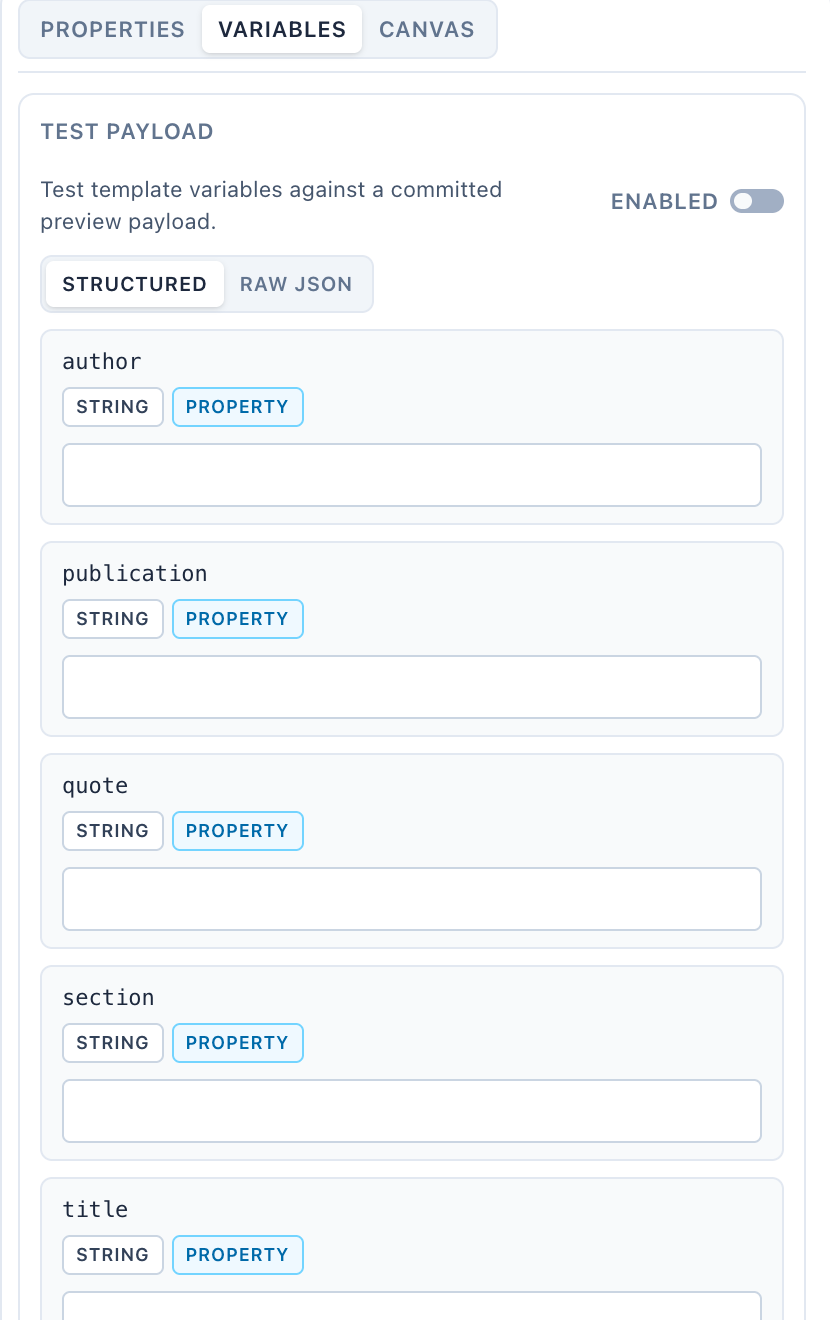
Section titled “Preview Data”The Variables tab includes a Test Payload area. Turn Preview on to render the canvas with the current test data.
Structured mode is easier for simple values. Raw JSON is better when the payload contains arrays or nested data. If the structured editor cannot represent the payload, switch to Raw JSON.
The sidebar lists active variables and can show inactive variables. Badges call out whether a variable comes from a property field, Handlebars, or a helper.
Rendering with variables
Section titled “Rendering with variables”Pass values in template_values when generating the image. Learn more.
{ "template_values": { "title": "Launch Day", "accent_color": "#03B875", "avatar_url": "https://example.com/avatar.png" }}The HTML/export button in the top toolbar is useful when you want to inspect the generated HTML with the current template and preview values.