
Dynamic Images
Turn data into beautiful, shareable images.
Overview
Section titled “Overview”Dynamic images are generated programmatically from structured data. Instead of designing each image manually, you create a template and populate it with data - names, dates, stats, quotes, or any other content.
Common use cases
Section titled “Common use cases”Certificates and awards
Section titled “Certificates and awards”Generate personalized certificates for course completions, achievements, or recognition.
<div style="width: 800px; height: 600px; background: white; border: 20px solid #1e40af; padding: 60px; text-align: center; font-family: Georgia, serif;"> <h2 style="color: #1e40af; font-size: 24px; margin: 0;">Certificate of Completion</h2> <p style="font-size: 18px; color: #666; margin-top: 40px;">This certifies that</p> <h1 style="font-size: 42px; color: #111; margin: 20px 0;">Jane Doe</h1> <p style="font-size: 18px; color: #666;">has successfully completed</p> <h3 style="font-size: 28px; color: #1e40af; margin: 20px 0;">Introduction to Web Development</h3> <p style="font-size: 16px; color: #666; margin-top: 60px;">December 30, 2025</p></div>Job listings
Section titled “Job listings”Turn job data into shareable images for social media and job boards.

Quote cards
Section titled “Quote cards”Generate shareable quote images from user content.
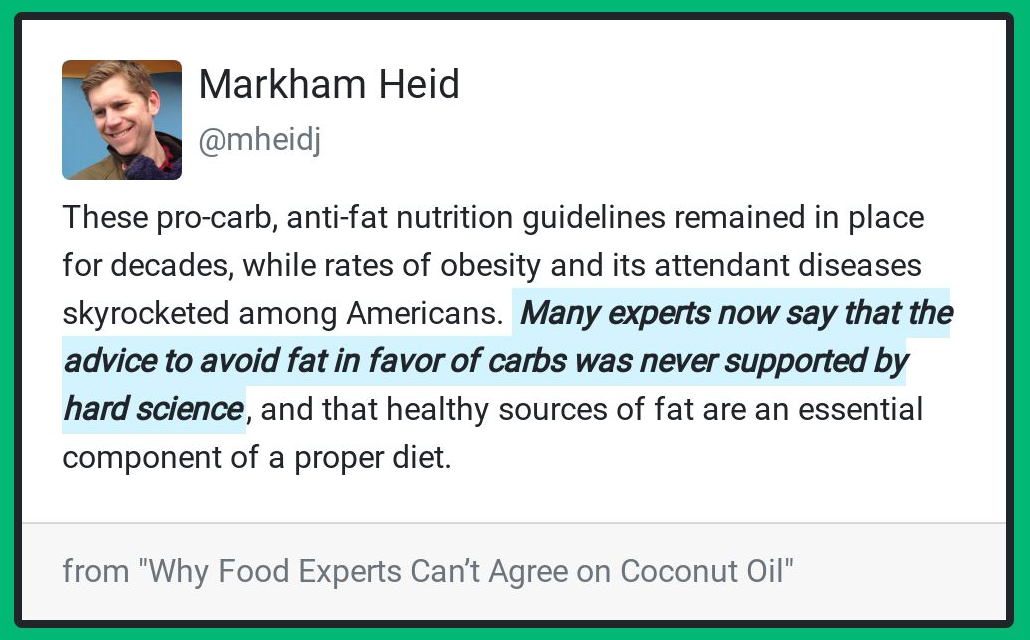
Personalized invitations
Section titled “Personalized invitations”Create custom event invitations with recipient names, dates, and event details.
Stats and leaderboards
Section titled “Stats and leaderboards”Turn metrics and rankings into visual graphics for sharing.
E-commerce
Section titled “E-commerce”Generate product cards, sale announcements, or promotional graphics from product data.
Using templates
Section titled “Using templates”For dynamic images, Templates are the most efficient approach. Define the design once with variables, then generate images by passing just the dynamic data.
You can write the HTML/CSS yourself or build the design visually with the Template Editor. If your template uses editor variables, the Variables guide explains preview data, fallback behavior, and template_values.
Create a template
Section titled “Create a template”curl -X POST https://hcti.io/v1/template -u 'UserID:APIKey' \ -H "Content-Type: application/json" \ -d '{ "html": "<div style=\"padding:40px;background:#4f46e5;color:white;font-family:sans-serif;\"><h1>{{title}}</h1><p>By {{author}}</p></div>" }'Generate images from the template
Section titled “Generate images from the template”curl -X POST https://hcti.io/v1/image/t-abc123 -u 'UserID:APIKey' \ -H "Content-Type: application/json" \ -d '{ "template_values": { "title": "My Amazing Article", "author": "Jane Doe" } }'Batch generation
Section titled “Batch generation”For multiple HTML/CSS renders, send a batch request with shared options and individual variations. Keep the number of variations within your plan’s batch limit.
curl -X POST https://hcti.io/v1/image/batch -u 'UserID:APIKey' \ -H "Content-Type: application/json" \ -d '{ "default_options": { "css": "body { padding: 40px; background: #4f46e5; color: white; font-family: sans-serif; }" }, "variations": [ { "html": "<h1>Article 1</h1><p>By Jane</p>" }, { "html": "<h1>Article 2</h1><p>By John</p>" }, { "html": "<h1>Article 3</h1><p>By Alex</p>" } ] }'Design tips
Section titled “Design tips”-
Use web-safe fonts or Google Fonts - Ensure your fonts render correctly. Learn about Google Fonts.
-
Design at 2x resolution - Images are rendered at
device_scale: 2by default for crisp display. -
Test with real data - Use actual content lengths to ensure your layout handles edge cases.
-
Keep file sizes reasonable - Very large images take longer to generate and load.
-
Use CSS flexbox/grid - Modern CSS layouts work great for dynamic content that varies in length.
Examples
Section titled “Examples”Simple quote card
Section titled “Simple quote card”<div style="width: 600px; padding: 60px; background: linear-gradient(135deg, #f5f7fa 0%, #c3cfe2 100%); font-family: Georgia, serif;"> <blockquote style="font-size: 28px; line-height: 1.6; color: #333; margin: 0;"> "{{quote}}" </blockquote> <p style="margin-top: 30px; font-size: 18px; color: #666;"> — {{author}} </p></div>Event invitation
Section titled “Event invitation”<div style="width: 500px; padding: 50px; background: #1a1a2e; color: white; text-align: center; font-family: sans-serif;"> <p style="font-size: 14px; letter-spacing: 3px; color: #e94560;">YOU'RE INVITED</p> <h1 style="font-size: 36px; margin: 20px 0;">{{event_name}}</h1> <p style="font-size: 18px; color: #ccc;">{{date}} at {{time}}</p> <p style="font-size: 16px; color: #888; margin-top: 30px;">{{location}}</p></div>Need help?
Talk to a human. Email support@htmlcsstoimage.com and we’ll help you get started.